

Website Training Guide
This page exists to provide instructions on how to make changes to CentralAcademy.tv using WordPress & Elementor Page-Builder. If you have any questions or face issues with the site, contact Matt Brown at Platform Studios.
Email: matt@platform-studios.com
How To Edit An Existng Page:
- Select “Pages” from the sidebar menu in the WordPress dashboard.
- Select the page you wish to edit and click “Edit With Elementor”
- Once updates are complete, click “Update” or “Save As Draft”
How To Add A New Page
- Select “Pages” from the sidebar in the WordPress Dashboard and create a new page.
- Give the Page a title.
- Select “Edit With Elementor”
- Click the folder icon to open the templates windown.
- Under “My Templates” find “TEMPLATE: Single Page” and press “insert”
- Now you can edit the page. Be sure to publish the page or save as draft.
How To Add New Staff/Courses
- Select “Staff” or “Course” from the sidebar in the WordPress Dashboard and create a new one.
- For Staff:
- Add the staff member’s name in two places: Post Title & Name Field.
- Input the staff member’s title, brief bio (2-3 sentences), staff photo, and years in ministry.
- Once done, click “Publish”
- For Courses:
- Input the Course Title, Program Length & Course Description.
- Input the relevant school: SEU, Growing Deeper, or Central Academy
- Click “Publish”
Tips & Tricks
- A pre-formatted, two-column section is stored in the templates folder.
- Sections can be copied from one page and pasted to another. This helps in keeping the same styling on all pages without having to recreate from scratch.
- H1, H2, H3’s and other headings are for organization, not styling. Each page should only have one H1 Title, but can have multiple H2’s & H3’s. Here’s a link to Yoast’s best practices for headings.
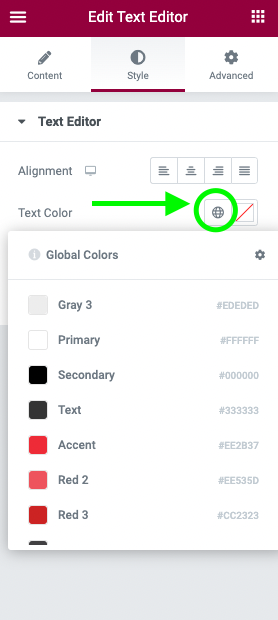
- Central’s brand colors are stored globally and can be accessed by hitting the “globe” icon.